Link and Detail Sites
Configure how users navigate between views using column links and show details.
Enable Linking
Enable configuration mode in the toolbar and hover over the target column header and click the edit icon.
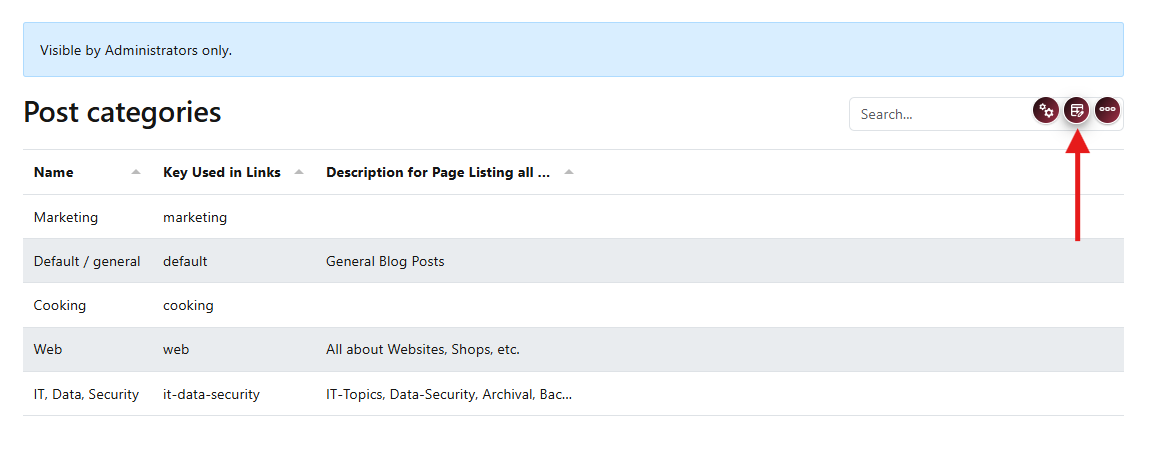
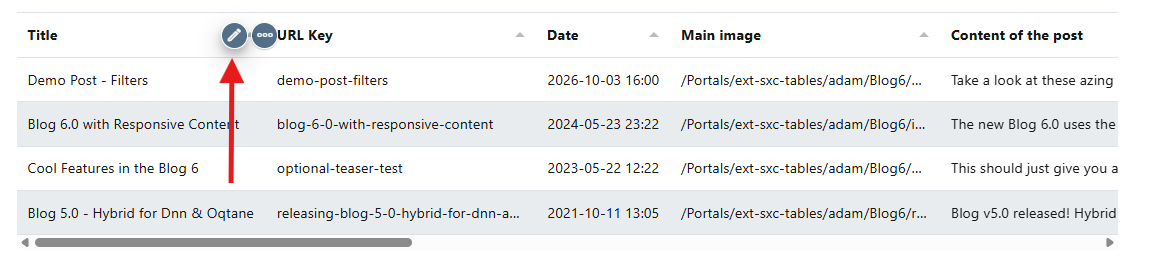
You're now in the column editor.
Configure the Link
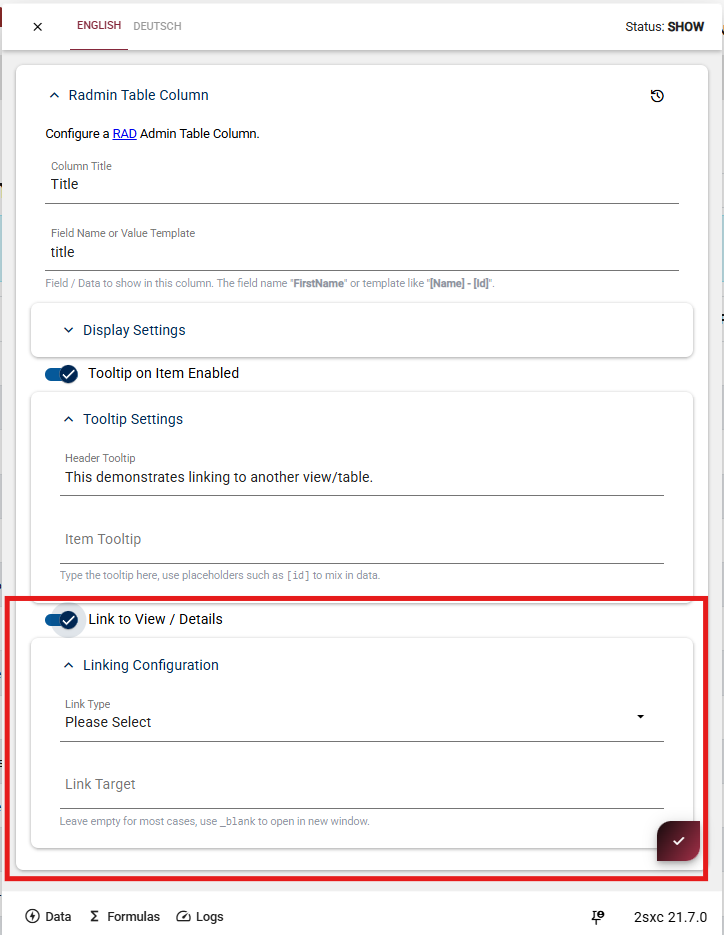
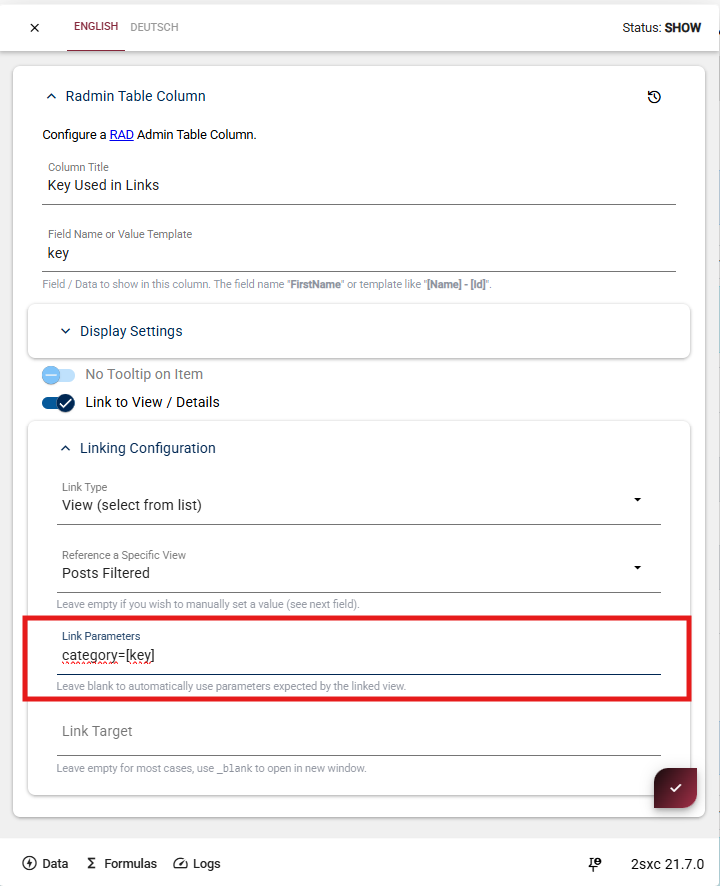
In the column settings, scroll to the link area (highlighted below):
- Set Link Type to View (select from list).
- In Linking Configuration, choose Reference a Specific View (example:
Posts Filtered). - Optional: Fill Link Parameters if you want to pass custom values.
- Optional: Set Link Target (leave empty for normal navigation, use
_blankfor a new tab).
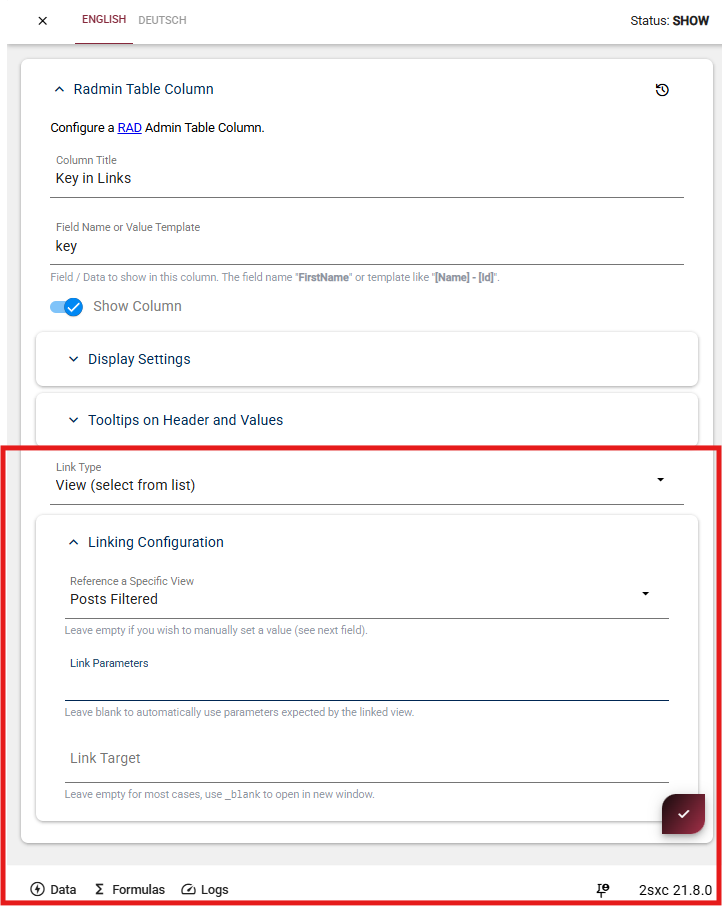
Result
After saving, clicking values in that column opens the linked target view.
Link Parameters
Link parameters let you open another view already filtered to the clicked row.
Use Link Parameters
After selecting the target view, use Link Parameters to pass values to that view. If you leave it empty, Radmin uses parameters expected by the linked view.
Parameter Format
Use this pattern to pass values.
The key can be the name of the field, an ID, or a GUID:
category=[key]
What This Means
categoryis the parameter name that the target view expects[key]is replaced with the actual value from the clicked row
The key can be the name of the field, an ID, or a GUID.
See It in Action
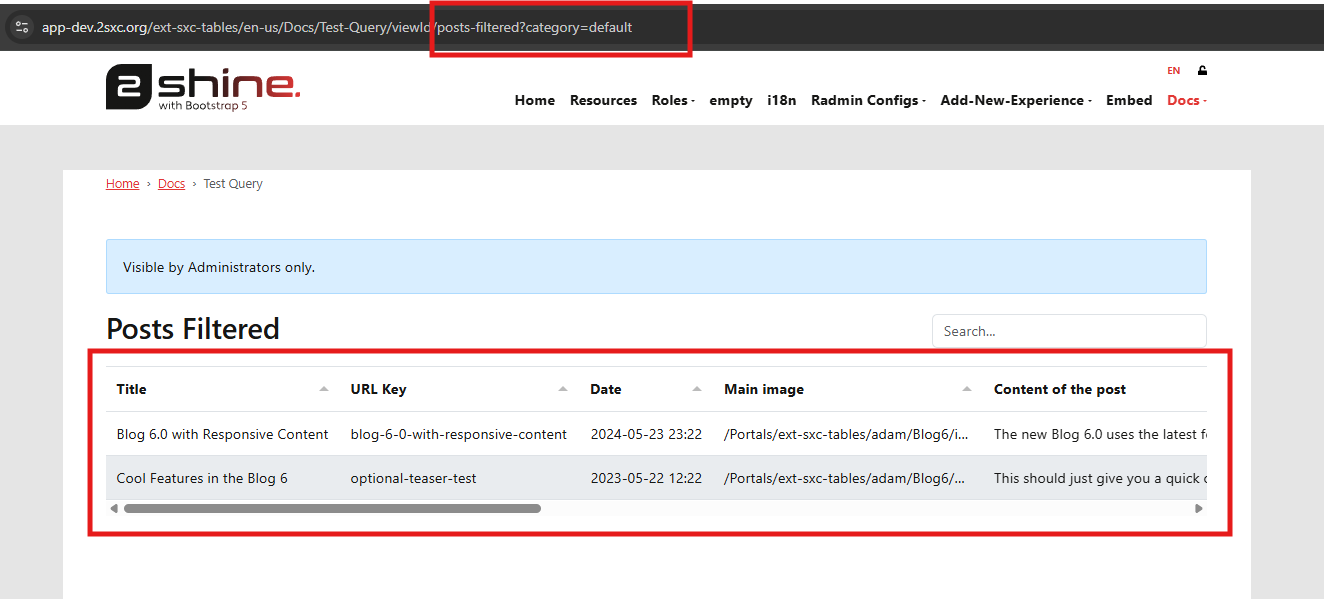
When users click the link, Radmin appends the resolved parameter to the URL.
Result
The target view receives the parameter and can show only matching data.
Next step:
Continue with Detail View for automatic item details.